
Tutto × Altiplane · Webinar, 21 September 2026
Start the new season with Claude
Connectors, projects, skills and routines: the full recap, the prompts we used and answers to your questions.
On Monday 21 September, Franz Kubach (Altiplane) and Daniel Forsthofer (Tutto) ran a live webinar (in French) on moving from "I do things with AI" to "AI also does things for me". No lecture: a real-world demo, with its wins, a mistake or two (the educational kind), and plenty of questions. Thank you to everyone who joined.
This post walks through everything we showed, step by step, with the prompts and skills to copy, followed by an FAQ that completes the answers we gave live. The prompts are in English here; the French originals are in the French version of this page.
The four pillars
By the end of the session, the aim was for you to know how to:
- connect your apps to Claude (the MCP technology, for Model Context Protocol);
- use a project to run your business or personal projects from one place;
- define skills so you never have to make the same request hundreds of times;
- automate it all with routines that work while you sleep or have a coffee.
Two framing points first. AI never answers the same way twice: you can't predict exactly what it will produce, and it will probably get something wrong, even in a live demo. And working with Claude is like welcoming a new hire: they don't know your habits, your files or how you work yet. You explain the context, give them the access they need, and check what they do. Today lays the foundations; getting the full value out of AI takes several weeks of building.
The case study: Torréfaction Belleville
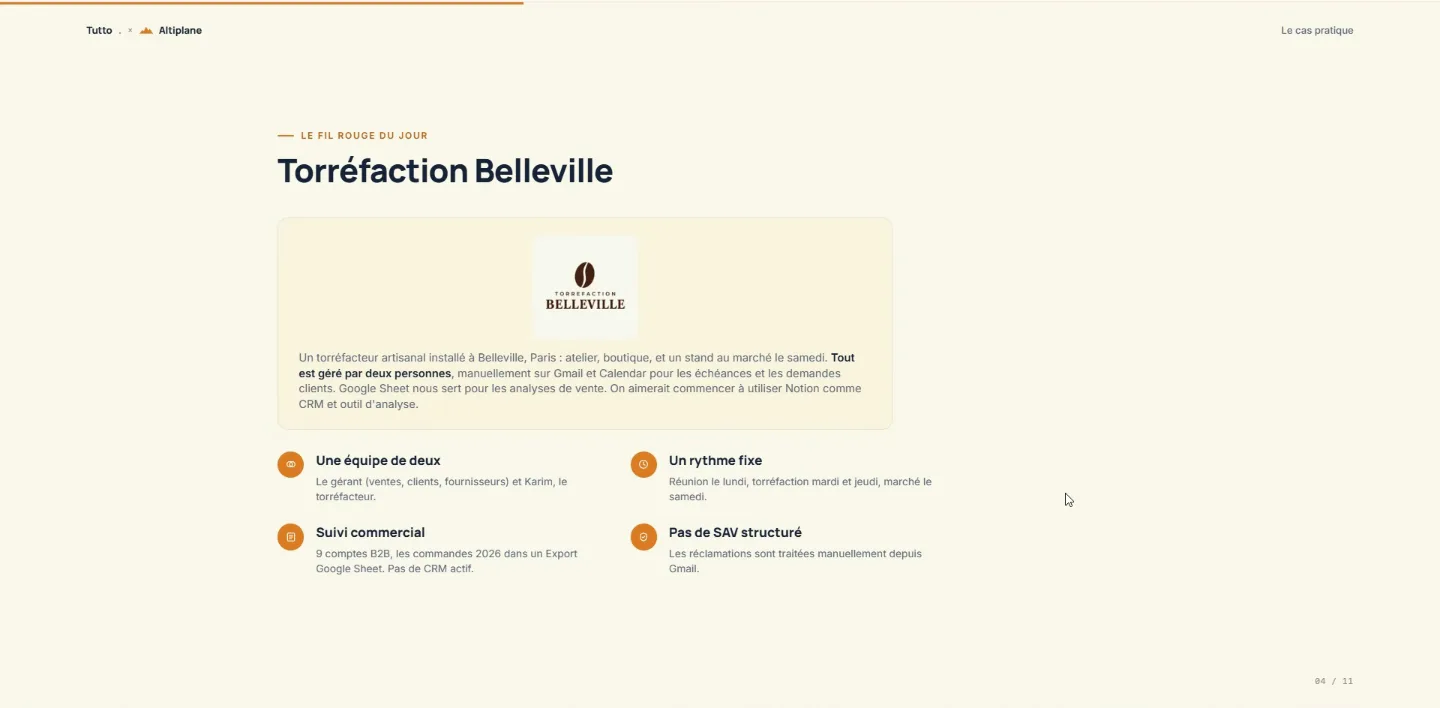
To make it concrete, Franz played the manager of Torréfaction Belleville, a small (fictional) artisan coffee roaster in Paris:
- a team of two: the manager (sales, customers, suppliers) and Karim, the roaster;
- a fixed rhythm: a 30-minute meeting on Monday, roasting on Tuesday and Thursday from 8 to 10;
- manual sales tracking: 9 B2B clients, retail customers, and sales typed by hand into a Google Sheet;
- no structured customer service: everything lands in Gmail (invoices, quotes, complaints, events).
The goal: organise all of this with Claude and start centralising information in Notion (clients, quotes, support tickets, meeting notes, supplier invoices).
It's only an example. Swap the coffee for your own work (a practice, a non-profit, a shop, a personal project) and the method is exactly the same.
Pillar 1: connect your apps
Why connect Gmail to Claude? So it can read your email, calendar and files, act (sort, create an event, draft a reply) and analyse. And all of it can be revoked at any time.
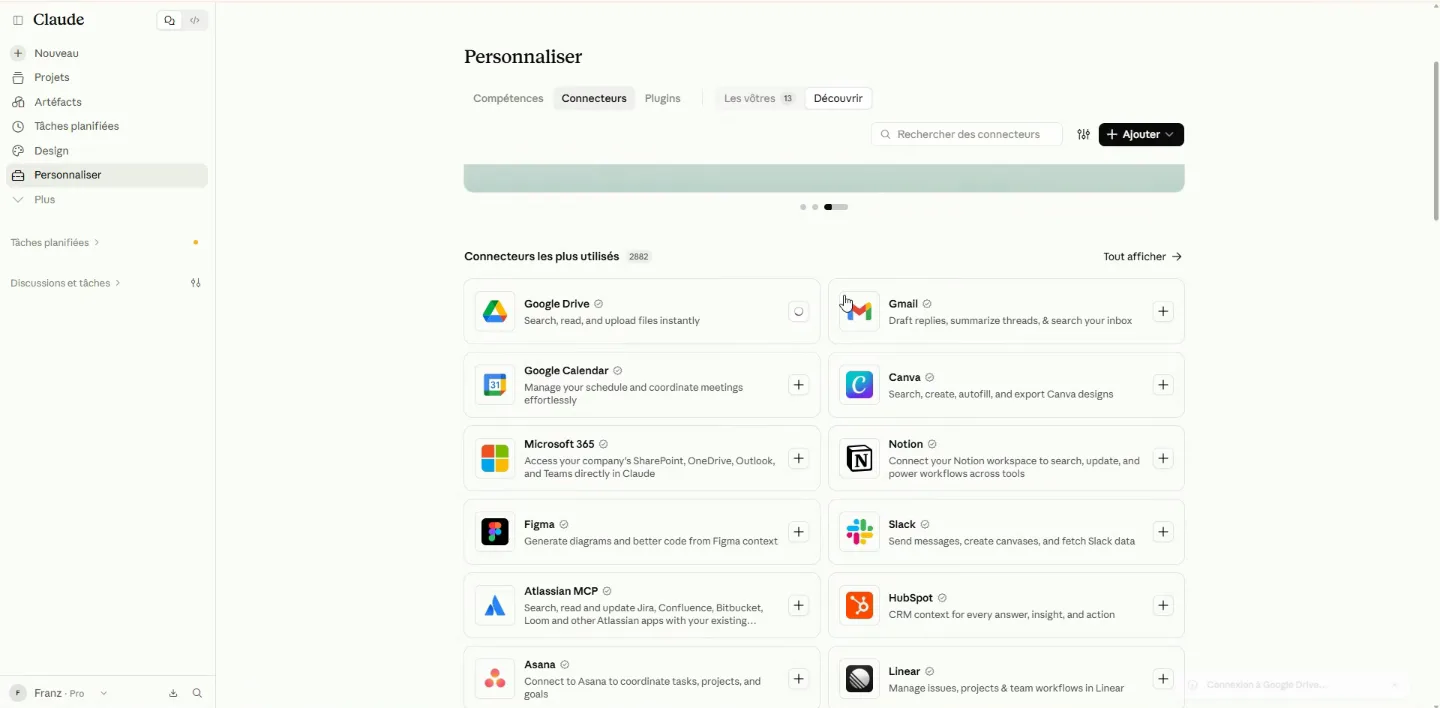
In the left menu, go to Customize → Connectors. Google usually appears among the most used. Connect Google Drive, Gmail, Google Calendar, then Notion. Each time, Google explains what Claude will be able to see and do; it won't do anything you don't ask, and you can cut access whenever you like.
Triage what's urgent
First test, in a plain conversation:
Look at my email and tell me which messages need quick action from me. I run Torréfaction Belleville, I have no time to waste: I need to know where to act first.
Claude finds the Gmail tool, reads the inbox and surfaces what matters: two customer complaints (stale beans for Julien Vasseur, ground coffee instead of whole beans for Sophie Renaud), a maintenance invoice due in four days, and a supplier, Africa Green Coffee, offering to present its new harvest on Thursday the 24th at 9:30. You can expand the steps to see what it's doing: you don't need to understand all of it, but it helps when a result surprises you.
Sort with Gmail labels
Labels aren't even an AI feature, but they're perfect for letting an AI sort quickly and well. In Gmail, create your labels (the + next to "Labels") and give them a colour (the three dots → label colour). For Belleville: Clients & SAV, Commercial B2B, Équipe & Production, Factures & Compta, Fournisseurs, Presse & Événements, Rapports & Ventes.
Sort my email into the existing labels: Clients & SAV, Commercial B2B, Équipe & Production, Factures & Compta, Fournisseurs, Presse & Événements, Rapports & Ventes. Don't invent new labels.
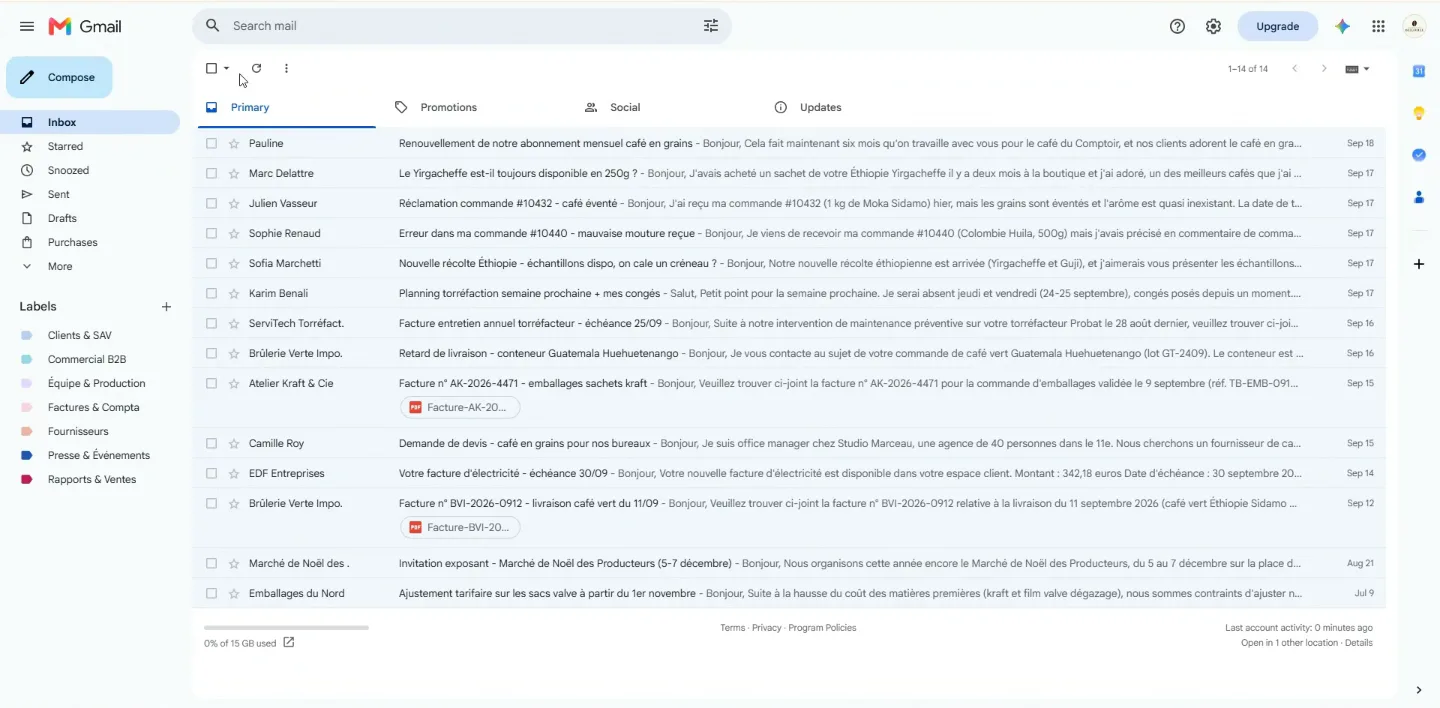
Claude first checks the labels exist, then applies them. It missed a few: we simply asked it to sort the remaining ones too. When the scope is clear (labels given, nothing to invent), you can let it act without approval, because it won't step outside that frame.
A co-pilot for the calendar
Africa Green Coffee's slot clashes with Thursday's roasting, and Karim had emailed to say he'd be away on Thursday and Friday.
Africa Green Coffee is proposing a call on Thursday the 24th at 9:30. Check my calendar and recent emails, tell me whether I'm really free and, if not, suggest a better option.
Claude cross-checks the calendar and the email, spots the clash and Karim's absence, and suggests Wednesday the 23rd at 9:30.
Yes, draft the reply and block the slot in my calendar.
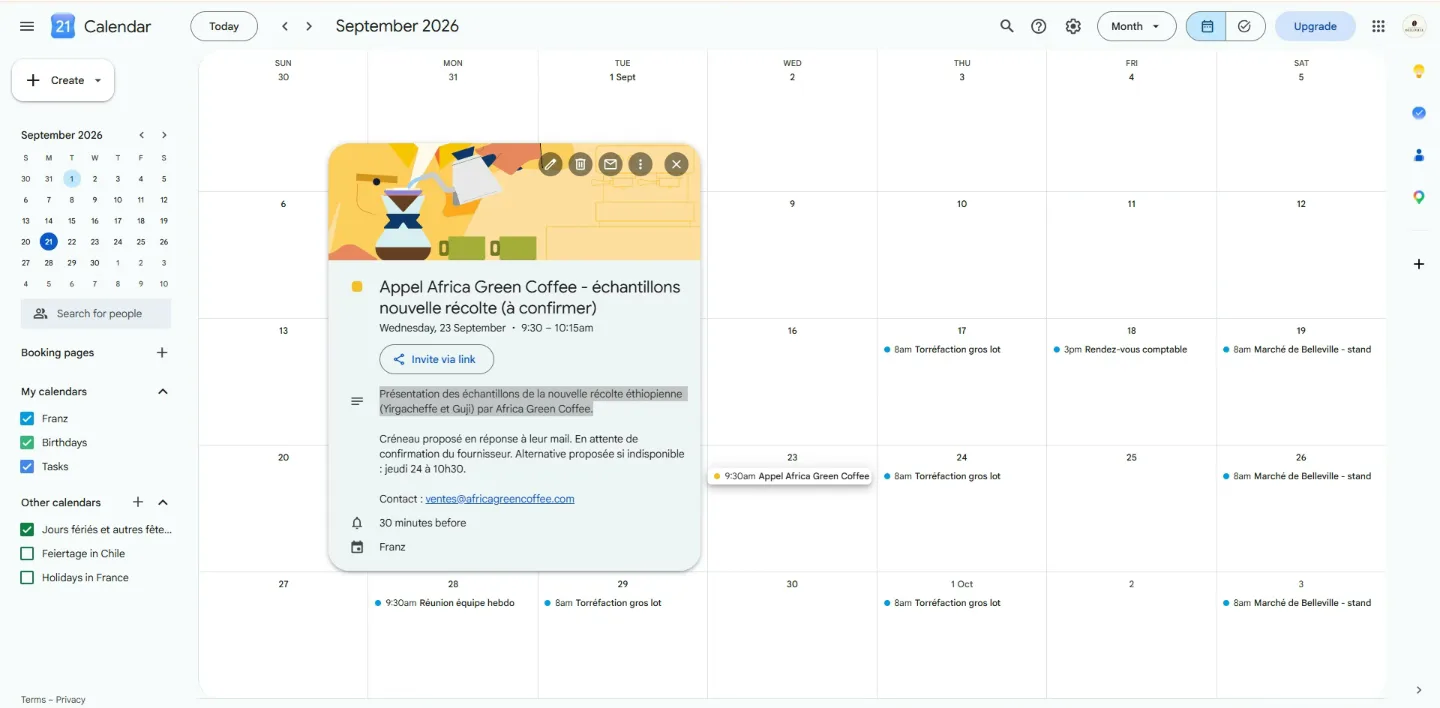
Two good practices here. Drafts: Claude sends nothing without your say-so, so you stay in charge. And context in the calendar: Claude fills in events far better than we do (subject, contact, notes), which pays off when you check them on your phone. To finish:
Can you update my calendar with the information in my email? Check existing events, especially the one we just created, avoid duplicates, and update the relevant events rather than recreating them.
It moved the roasting session and added Karim's absence and the invoice due dates. It made a small mistake on one meeting, noticed it and fixed it.
Pillar 2: the project, so you stop repeating context
Everything so far lived in a single conversation. Open a new one and Claude has forgotten it all: you have to explain everything again. When there are two of you running a business, you don't have that time.
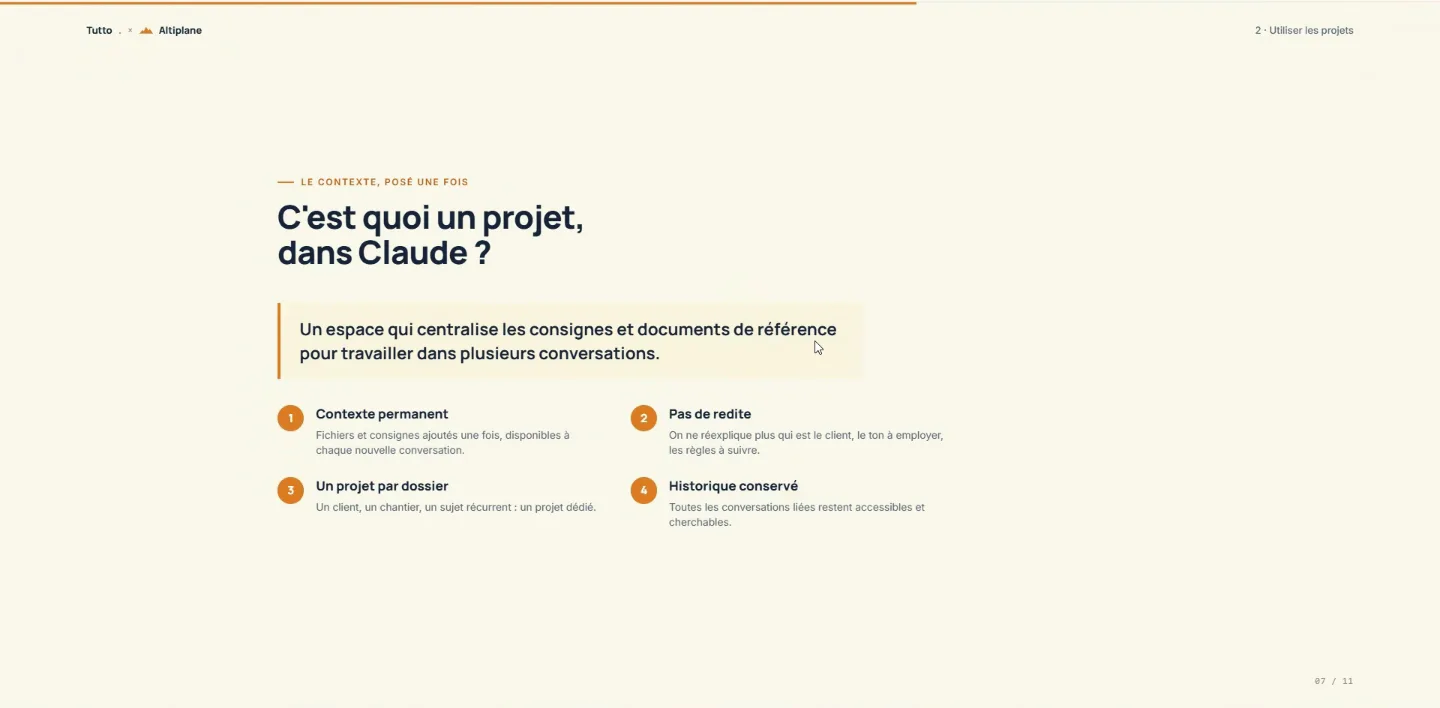
A project (which also exists in ChatGPT and Mistral) is a box that holds all your conversations on one theme, with:
- permanent context: files and instructions are added once;
- no repetition: you don't have to explain again;
- one project per folder: a business, a team, a personal project;
- history kept.
There's a lot of talk about building a "second brain" with AI: before creating agents, you need to understand how a project works.
Create the project and its instructions
New project, with this description:
I run Torréfaction Belleville, an artisan coffee roaster in Paris. I use this project to centralise my orders, my B2B clients and my exchanges with them, so I get answers and analysis consistent with my business without repeating the context every time.
The instructions are what Claude reads before every reply:
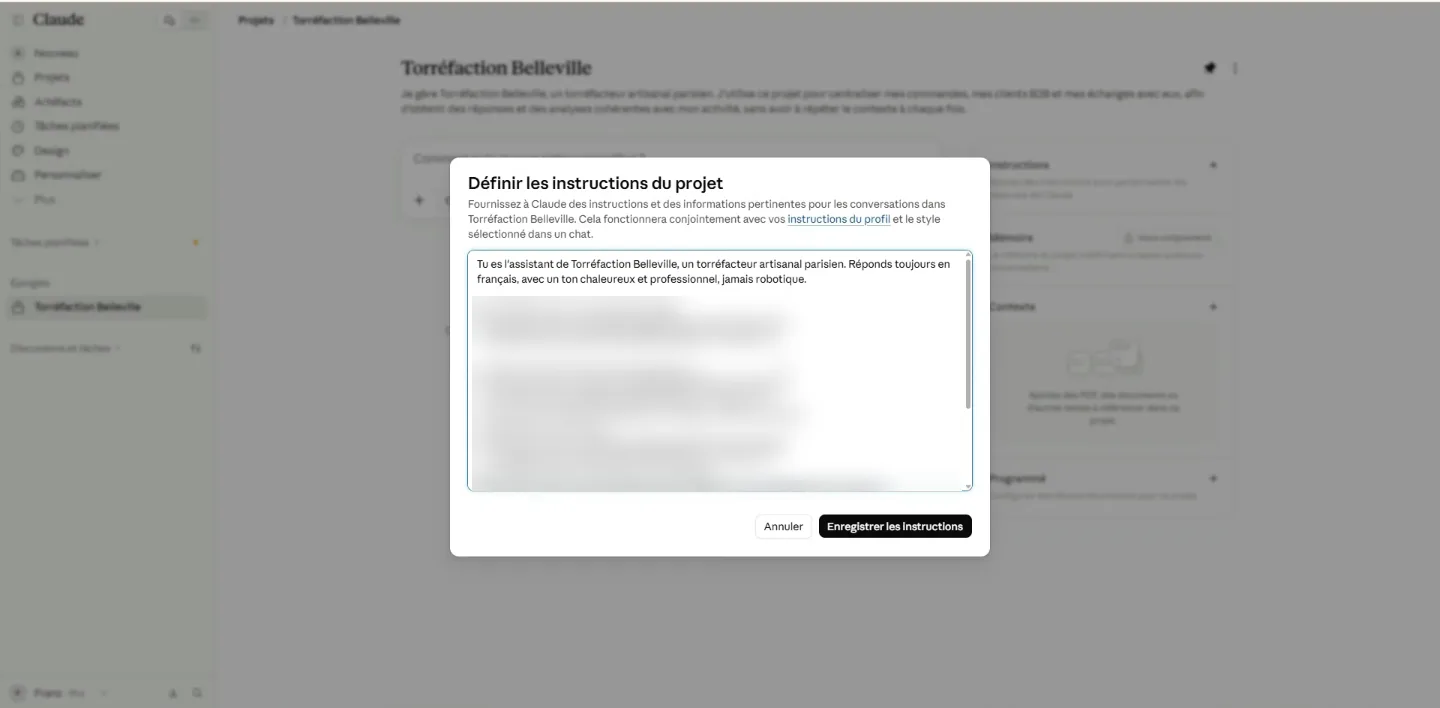
You are the assistant for Torréfaction Belleville, an artisan coffee roaster in Paris. Always reply in French, in a warm, professional tone, never robotic.
My client CRM is in Notion: [link]. Invoice information goes here: [link]; the link to the email is enough, no need to upload the PDF to Notion. Customer service is here: [link]. Sales reports are here: [link].
Quote requests are logged in the Notion "Devis" table: [link]. Check each record's status to tell sent quotes from new requests.
With your apps connected, Claude would find these databases on its own; pointing to them saves time and avoids mistakes.
Add the context
In the Context panel, drop in the reference documents: a company profile (identity, brand tone, team, locations, weekly rhythm, clients, suppliers, how invoices and quotes are structured, the statuses used in Notion, customer-service rules: "open, in progress, resolved", and a suitable commercial gesture when a product is faulty), the price list, and the sales export straight from Google Drive (the +, then Drive).
First habit with every new project:
Read the company profile, the price list and the sales export before we start.
It noticeably improves the quality of the answers. Meanwhile, Claude builds its memory of the project over the conversations; you can view it at any time.
Process invoices into Notion
You can start another conversation in the project while the first one is still running:
Process the invoices in my email into Notion, even those without an attachment. Use the planned statuses: Direct debit, To pay, Paid, Late. Also check the due dates of existing invoices and flag late ones, without confusing a scheduled direct debit with a confirmed payment.
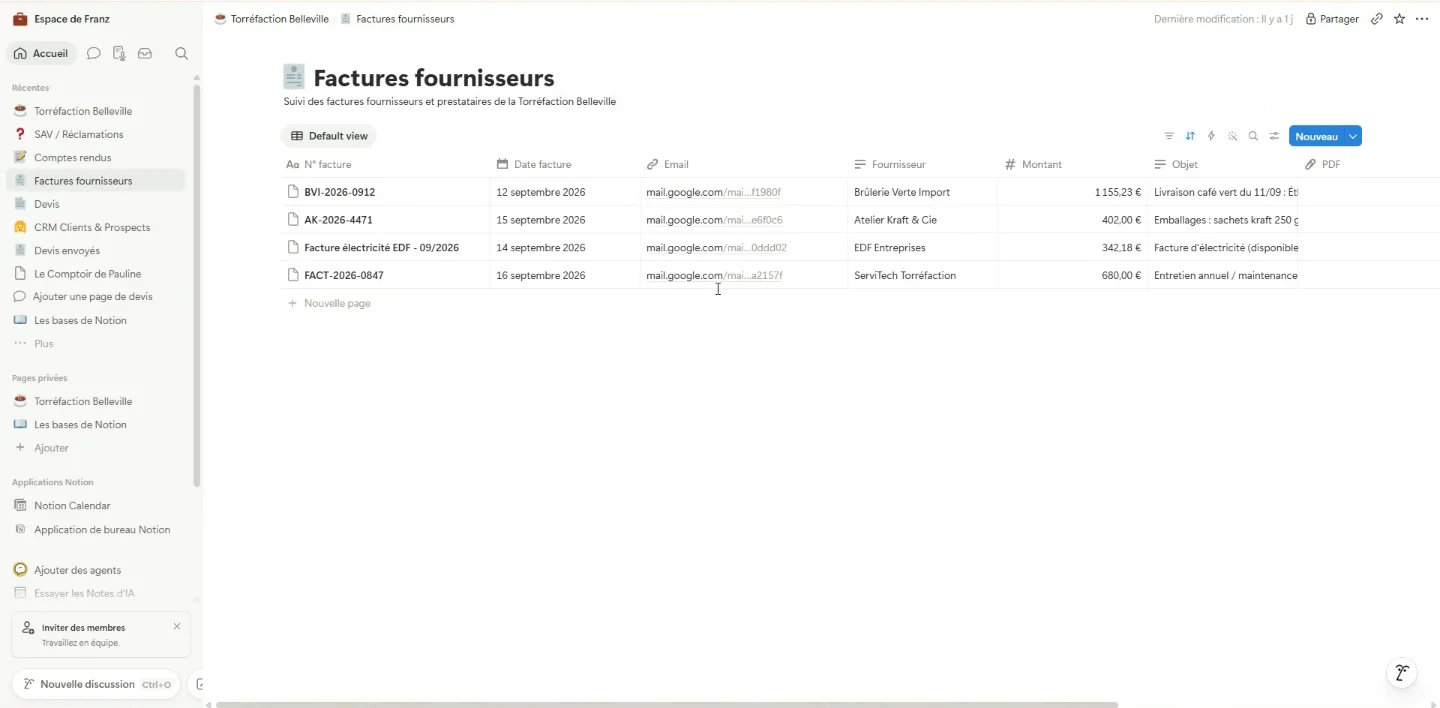
Claude read the invoices in the email bodies, opened the PDFs and filled in the database: number, date, supplier, amount, due date, status. It correctly understood that the electricity bill was paid by direct debit. Tip: link to the email rather than importing the PDF, which is more reliable, and one click takes you back to the original. Many small businesses have a dedicated billing address; a single prompt turns that flow into an organised database.
Analyse sales
From our September orders, who are our top 3 B2B clients, meaning the ones who generated the most revenue, in descending order? Give the amount for each and suggest actions to keep them loyal.
Claude opened the Google Sheet, filtered on September, produced a small chart and loyalty actions. One chart axis was wrong, which hadn't happened in our tests: AI never answers the same way twice. The figure itself was right: Café Belleville Nord, €374 in September, checked in the file.
Answer a pricing request
Le Comptoir de Pauline, a client for six months, wants to move from 10 to 15 kg a month and asks for a volume discount.
Le Comptoir de Pauline wants to move from 10 to 15 kg a month from October and is asking for a volume discount. Look at the price list and their purchase history, suggest a consistent price, and draft a reply.
The point isn't that Claude invents a price: it works from the existing price list, the company profile and the client's real history, then writes the reply. It's the project's context that makes the proposal credible.
Pillar 3: skills, for the method
The project gives the context. For a specific task (handling a complaint, answering a quote request), you want Claude to know exactly what to do without bloating the instructions.
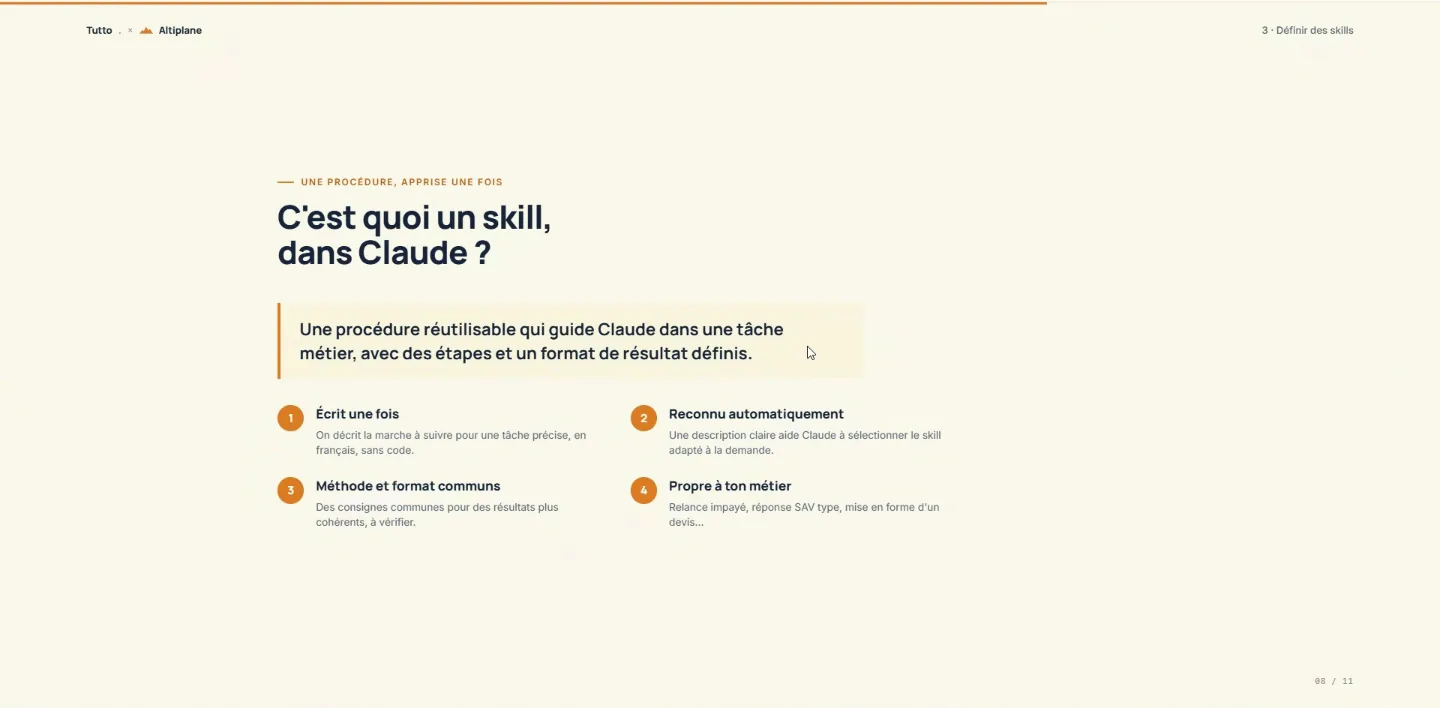
A skill is a reusable procedure: a text file that tells Claude when to use it and how to proceed, step by step, with the expected result. It can come with files or point to tools ("check the sales export, then the calendar"). Customer service, accounting, sales: it's useful everywhere.
Under Customize → Skills → Add, there are three options: import an existing skill (often a ZIP file, downloaded or shared by your company), create it with Claude in a conversation, or write it by hand.
Skill no. 1, written by hand: handle a customer complaint
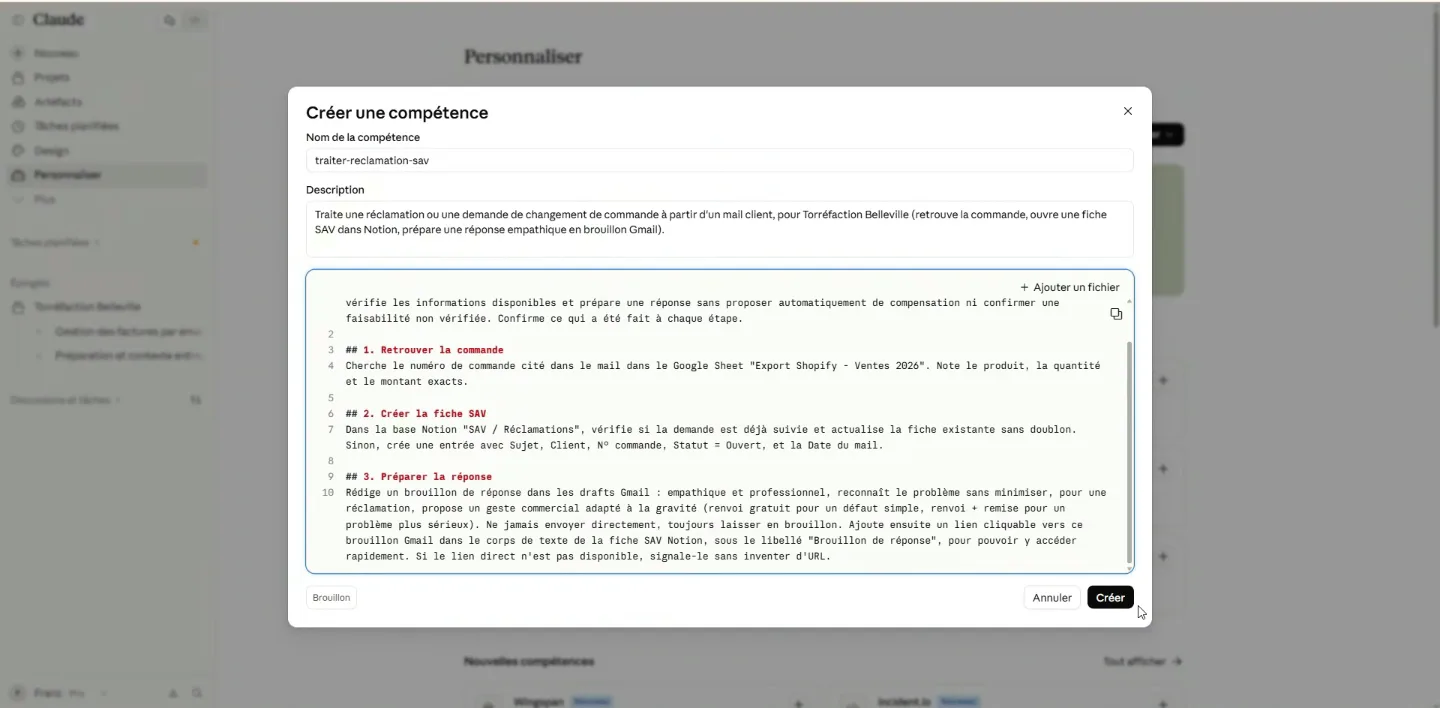
Name: traiter-reclamation-sav
Description: Handles a complaint or an order-change request from a customer email for Torréfaction Belleville (finds the order, opens a support ticket in Notion, prepares an empathetic draft reply in Gmail).
Instructions: When a complaint or order-change email arrives, first identify the type of request, then follow these three steps in order. Check the information available and prepare a reply without automatically offering compensation or confirming anything you haven't verified. Confirm what was done at each step.
1. Find the order. Look up the order number from the email in the Google Sheet "Export Shopify – Ventes 2026". Note the exact product, quantity and amount.
2. Create the support ticket. In the Notion database "SAV / Réclamations", check whether the request is already tracked and update the existing record without duplicating it. Otherwise, create an entry with Subject, Client, Order no., Status = Open, and the email's date.
3. Prepare the reply. Write a draft reply in Gmail: empathetic and professional, acknowledging the problem without minimising it. For a complaint, offer a commercial gesture that matches the severity (free replacement for a simple defect, replacement plus a discount for something more serious). Never send directly; always leave it as a draft. Add a clickable link to the draft in the Notion ticket, labelled "Draft reply". If the direct link isn't available, say so without inventing a URL.
To use it, type / and the skill's name:
/traiter-reclamation-sav Handle everything under the Clients & SAV label: complaints and order changes.
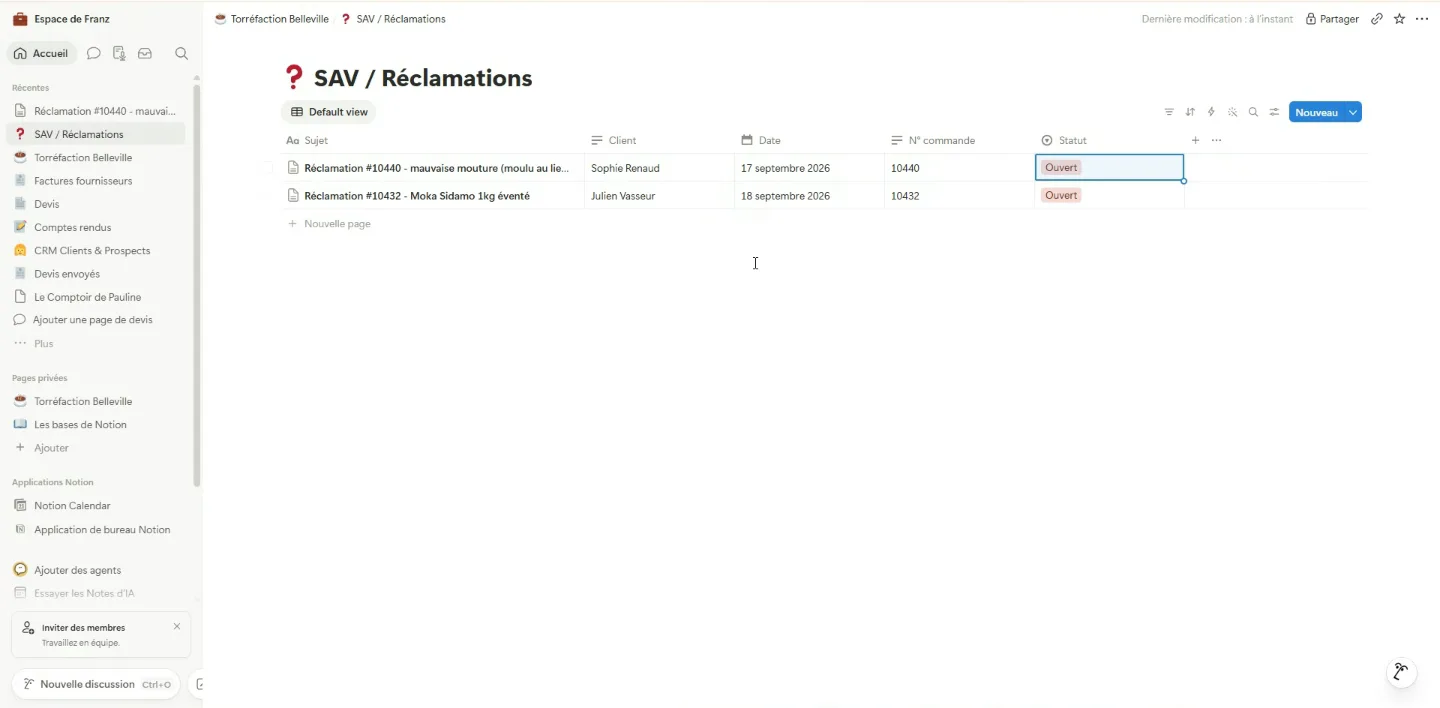
Claude identified the two complaints (and ignored the third email, a simple stock question), created the tickets with the right order numbers and prepared two drafts. The status stays Open: a human closes it once the problem is solved. The tone? Very warm… and a little too generous (20% off the next order). That's exactly what you fix in the skill: skills are versioned, and you can edit them by hand or ask Claude to improve them.
Skill no. 2, created by Claude: handle a quote request
Camille Roy, office manager of a 40-person agency in Paris's 11th arrondissement, is looking for a coffee bean supplier for two automatic machines. This time we let Claude write the skill with /skill-creator:
/skill-creator Create a skill called "traiter-demande-de-devis". It should work in steps: check the client's sales in the sales Google Sheet; if there have been sales, analyse their dates, products, quantities and prices; suggest a consistent price; check whether a client record exists in the Notion CRM, create it if not, otherwise use the existing record without duplicating it; log the request in the Notion "Devis" table; prepare a draft reply.
Claude writes the skill and offers to save it: one click on "Save skill" and it's ready to use straight away, in the same conversation.
Pillar 4: routines, to automate
A routine (or scheduled task) runs by itself at the frequency you choose: every morning for email, every week for a sales report. You create it from the project, under Scheduled, or from Scheduled tasks: a name, instructions, a frequency and a permission level.
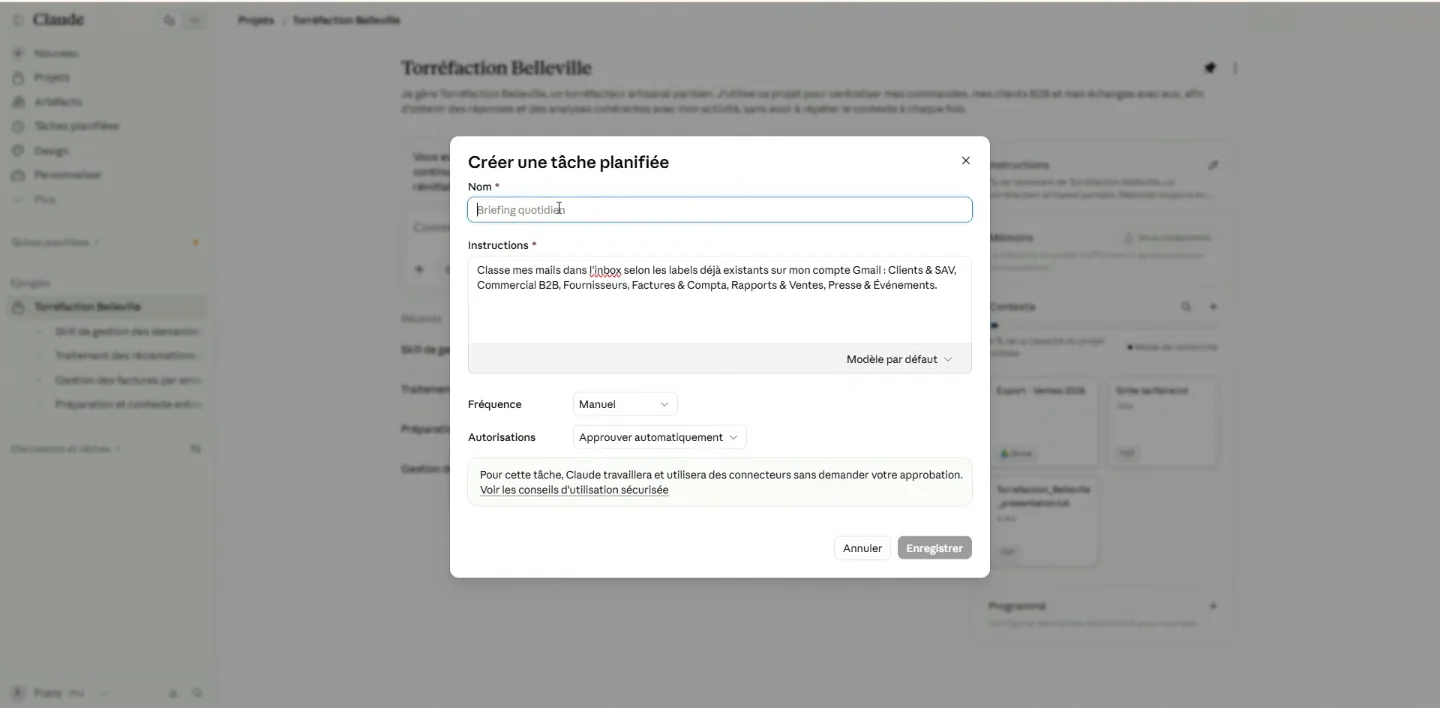
The four routines prepared for Belleville:
- Email sorting, every hour: "Sort the emails in my inbox into the existing labels on my Gmail account: Clients & SAV, Commercial B2B, Fournisseurs, Factures & Compta, Rapports & Ventes, Presse & Événements."
- Process invoices, every day at 9:00: the same instruction as for invoices above.
- Previous week's order analysis, Monday at 8:00: product and total quantity, most active B2B client, a summary added to Notion, and a summary email sent to the business address.
- Quote requests, Monday at 10:00: "Find new quote requests in my email and use the traiter-demande-de-devis skill."
Permissions. If every action needs manual approval, the routine waits until you log in. For sorting email or preparing drafts, auto-approve is reasonable: the scope is clear and nothing goes out to customers. Even in that mode, Claude may refuse an action it judges dangerous. Each run creates a conversation (tagged "scheduled") you can review, and Run now lets you test before the first scheduled run. Because the routine lives in the project, it has all the project's context.
And the live demo stopped… for lack of tokens
That's when the session hit its usage limit: after two skills, searches and dozens of actions there were no credits left, and buying extra credits didn't unlock in time. Frustrating, but instructive: it's exactly what will happen one day in your own work. You see it under Settings → Usage, and then you choose: buy credits, switch to a lighter model, or wait for the reset.
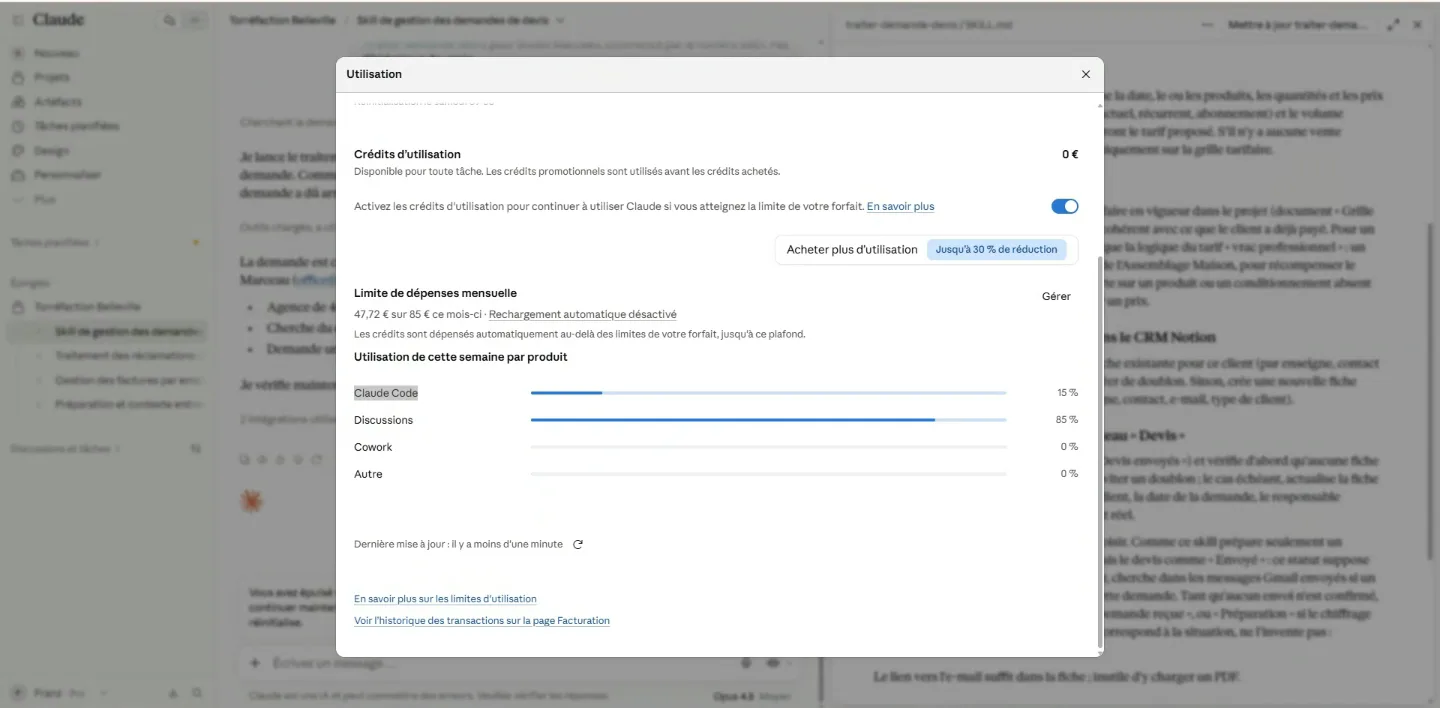
The debrief, in plain words
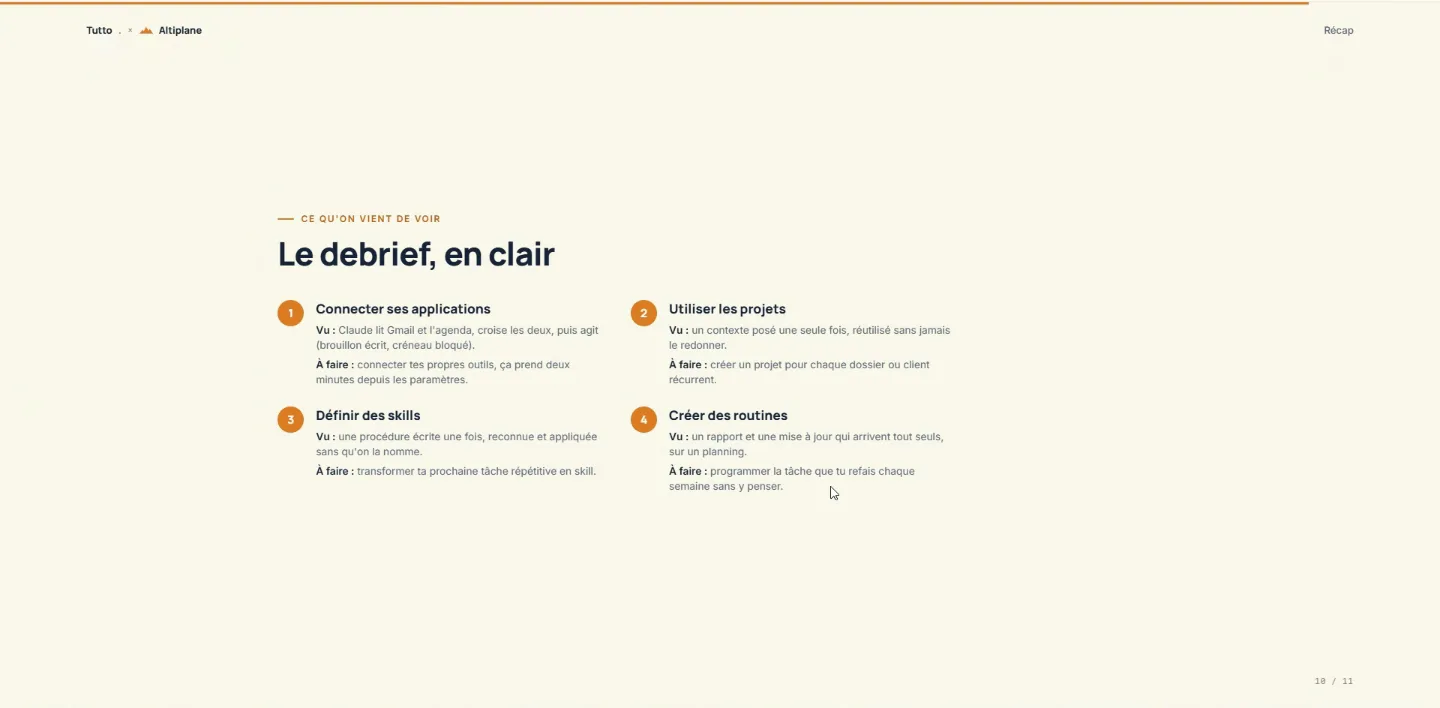
- Connectors give the tools: find information in your email, match it with your calendar, prepare an action without retyping everything.
- The project gives the context: who you are, your prices, where your databases live. No more re-explaining in every conversation.
- Skills give the method: you describe the steps once, Claude follows them, you test and improve.
- Routines give the schedule: once a task works, you schedule it and check the result over coffee.
Where to start
It's Altiplane's founding idea: get a clear view of your operations before you automate them. Pick one task you know well and keep repeating, a bit tedious, the kind you don't want to do but have to. Give the context, test it on a real case, check the result. Then improve the skill, change it, try again, and widen gradually. Don't try to automate everything at once: that's where mistakes happen and you lose control.
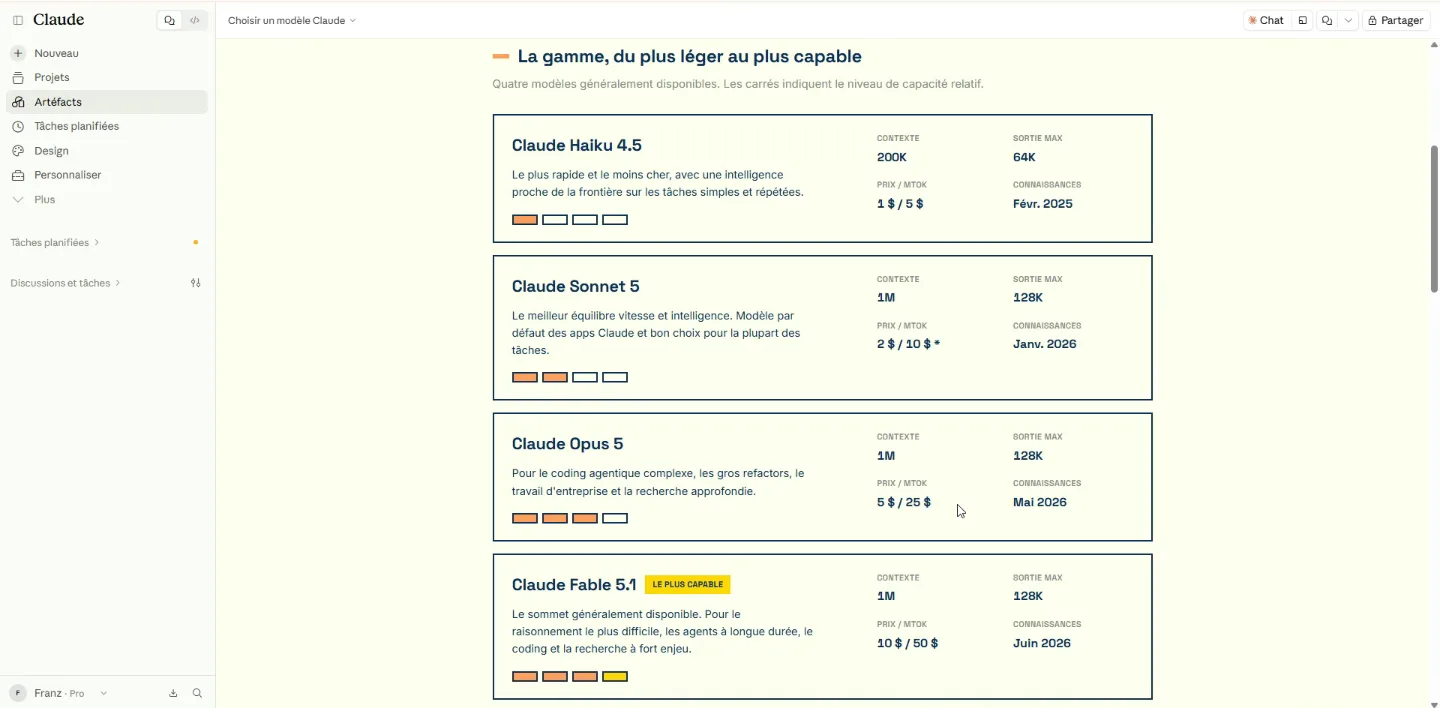
If you're unsure which model to use, here's the comparison we showed during the session:
Frequently asked questions
How much does a task like the ones in the demo cost in tokens?
Tokens are the "fuel" of AI: pieces of words. Everything Claude reads (your message, the project instructions, files, the emails it opens) counts as input; everything it writes, including its reasoning, counts as output.
During the live session we gave a rough figure. Here are the exact prices, in dollars per million tokens (input / output):
- Claude Opus 5 and Opus 4.8: $5 / $25 (we were using Opus 4.8)
- Claude Sonnet 5: $2 / $10
- Claude Haiku 4.5: $1 / $5
- Claude Fable 5.1: $10 / $50
Output costs five times more because generating text takes more compute than reading it.
A ballpark: sorting about fifteen emails is roughly 30,000 tokens read and 4,000 written, so $0.15 + $0.10 ≈ $0.25 at Opus prices. A multi-step task (search, open, sort, check) re-reads the context at every step, so ten steps can take it to $1–2. These are estimates; the real figure depends on how many emails there are and how long they are.
On a Pro or Max subscription you don't pay per token: tokens use up your allowance. The logic is the same.
Context is the conversation's working memory. The longer a conversation gets, the more each new message costs, because Claude re-reads everything before it. Hence two habits: a new conversation per task, and a project to keep context (instructions, files) without pasting it again.
Are there limits even on a paid plan? How do I see where I am?
Yes. Paid plans have a per-session limit (it resets after a few hours) and a weekly limit. That's exactly what happened live: the session ran out just before the routines section.
To track usage, open Settings → Usage. It shows the percentage of your session and week used, the split by product (chats, Claude Code, Cowork…) and, if you turn them on, usage credits: purchased credits that take over when your plan runs out, up to a monthly cap you set.
To make it last:
- pick a lighter model or a lower effort level for simple tasks;
- start a new conversation rather than extending a very long one;
- turn off connectors the conversation doesn't need;
- space out your routines: sorting email every hour is 24 runs a day.
Opus, Sonnet or Fable: which should I use?
Our default recommendation: Opus at medium effort. It balances quality and usage well for everyday work (finding something in your email, sorting, drafting).
- Fable 5.1, the most powerful model, for long, complex analysis. It burns through credits much faster.
- Sonnet 5 for well-defined tasks with a good prompt and a clear skill: it does the job very well at less than half the price of Opus.
- Haiku 4.5 for very simple, repetitive tasks.
The effort level (low, medium, high, extra, max) sets how long Claude thinks. Start low and only go up if the result isn't good enough. Official model comparison: docs.claude.com.
Can I connect Microsoft 365 (Outlook, Excel, SharePoint)?
Yes. The Microsoft 365 connector gives access to Outlook, SharePoint, OneDrive and Teams, just as Gmail and Google Drive worked in the demo.
In a company you usually need IT's approval: a Microsoft administrator has to authorise the app. Many companies block it by default, so raise it early, ideally as part of an AI usage policy.
There's also Claude for Excel, an add-in you install from Excel's Add-ins menu. You can ask it to build tables, format sheets, or find an error in a 20-tab workbook. It's one of the most impressive everyday uses, especially on financial files.
What happens to my data? Where is it stored, and is it used to train the AI?
What you send Claude is processed on Anthropic's servers, just as what you send ChatGPT is processed by OpenAI. During the Q&A we said prompts are "very often" used for training; it's more nuanced than that:
- Business plans (Team, Enterprise, API): by default, your conversations are not used to train models.
- Personal plans (Free, Pro, Max): you choose, in Settings → Privacy, whether your conversations can be used to improve models.
- Incognito mode: the conversation isn't kept in your history, isn't added to memory and isn't used for training.
A connector can be revoked at any time (Settings → Connectors) and Claude loses access immediately. Anything it has already read stays in past conversations; delete those if needed.
Need data to stay in Europe? That's possible with Claude through AWS (Bedrock) or Google Cloud (Vertex AI) in European regions. It's a more technical setup, for companies. Mistral, the French provider, also hosts data in Europe.
Either way, a few simple rules: no card numbers, passwords or health data; and in a company, a policy that says what may be shared with an AI. Details: privacy.anthropic.com.
Can I connect an organisation's whole shared drive?
If it's a Google (Gmail, Drive) or Microsoft (SharePoint, OneDrive) environment, yes: that's exactly what we did in the demo, with permission from whoever administers the accounts. For Nextcloud there's no ready-made connector in the default list; you'd need a custom (MCP) connector.
Claude doesn't swallow a terabyte at once: it searches and opens the files it needs. But an analysis that goes through thousands of documents uses a huge number of tokens. Start with one specific folder, or a project with the key documents.
For organisations, the Team and Enterprise plans are built for this: multiple users, much higher limits, and data not used for training. Current prices: claude.com/pricing. For very large volumes you can also have a locally run model extract the information and then hand the analysis to Claude: cheaper, but more technical to set up.
Instructions, memory, CLAUDE.md: what does Claude remember, and how do I clean it up?
There are three layers, and it helps to tell them apart:
- Project instructions: you write them. Claude reads them before every reply (who you are, your tone, where your Notion databases are).
- Context files: you add them (company profile, price list, sales export). Claude can't add them itself: Anthropic considers that choosing what goes into your context is a human's job.
- Memory: Claude builds it over the project's conversations. You can view and edit it from the project's Memory panel.
Anthropic recommends cleaning it up regularly: keep what's still true and delete what's out of date (an old price, a lost client). Up-to-date memory gives better answers. For the same reason, keep your context files current, or link online files (Drive) that update themselves.
If you use Claude Code or Cowork, the CLAUDE.md file plays the role of instructions: a text file of standing instructions you can review and tidy the same way.
Claude was very polite, sometimes too much. How do I give it my brand's voice?
In the demo Claude offered an unhappy customer 20% off and a free replacement: warm, but too generous. You set tone in three places:
- In the project instructions: that's what we did with "a warm, professional tone, never robotic".
- In the skill: set precise limits, e.g. "commercial gesture of 10% maximum without approval", "three sentences maximum".
- With styles: in the style menu you can create a custom style from a few examples of your own emails.
To go further, create a "brand voice" skill that describes how you speak, with examples of what to say and what not to say. Polite, relaxed, very direct: your call.
What about mistakes, the so-called hallucinations?
Claude makes mistakes, and you should expect it: during the live session one chart axis was wrong and a meeting was first put in the wrong place in the calendar. That's why we talk about a new hire: give it context and access, and check its work.
Good habits:
- check figures at the source: we confirmed in the Google Sheet that Café Belleville Nord really had ordered €374 in September;
- ask for links to sources (the link to the email in each Notion record);
- prefer drafts over automatic sending;
- leave decisions to a human (a support ticket stays "Open" until someone closes it).
See it as a gift: if AI were perfect, we'd stop thinking. Learning to steer Claude is learning to manage, a skill that's useful far beyond AI.
What's the difference between a skill and a plugin? And how do companies share skills?
A skill is a procedure you write: a text file that tells Claude when to use it and how to proceed, optionally with supporting files. A plugin is a more formal, ready-to-install package (Plugins tab under Customize) that can bundle several skills, connectors and commands.
In a company, skills get shared, often as a ZIP file. On Team and Enterprise plans an administrator can make skills available to the whole team. Picture your financial controller's skill: when you have a finance question outside your specialty, Claude follows the method the expert approved. Stored in one shared place and checked and maintained by the company, these skills give everyone the same quality.
If I forget how to create a skill or a routine, can Claude do it for me?
For skills, yes: type /skill-creator and describe what you want, even loosely ("make me a skill for handling quote requests"). Claude writes it and you just click "Save skill". That's how we built the quote skill.
For routines, the safest route is Scheduled tasks; Claude can, however, write the routine's instructions for you, ready to paste.
Two things stay in your hands: connecting your apps (for security reasons) and adding context files. For the rest, you can forget the details: once it's saved in a skill, Claude remembers it for you.
Routines: is it safe to approve everything automatically?
A routine runs without you. If it has to wait for your approval on every action, it stays stuck until you log in. Hence the auto-approve option.
It's reasonable when the scope is clear and low-risk: sorting email into existing labels, creating Notion records, preparing drafts. Even on auto-approve, Claude may stop if it judges an action dangerous.
Keep manual approval for anything that leaves the building or can't be undone: emails to customers, payments, deletions. And test each routine with "Run now" before scheduling it.
Notion has its own AI: why go through Claude?
Both work, and they work together. Notion's built-in AI is handy for work inside a page (adding a section, rewording, formatting). Claude connected to Notion is stronger when the task spans several tools: reading an email in Gmail, finding the order in Google Sheets, then creating the record in Notion. And Claude's Notion connector also works with a free Notion account, as in the demo.
Who we are
Altiplane, with Franz Kubach, helps French small and mid-sized businesses get a clear view of their operations before automating them: digital and AI audits, custom automations, and workshops that give teams practical, jargon-free foundations. altiplane.fr
Tutto, with Daniel Forsthofer, works with businesses adopting AI, from entrepreneurs and founders to organisations of 250 people. Sixteen years in digital transformation, application rollouts of up to 2.5 million users, and a simple approach: listen to your use cases and turn them into tailored coaching, so your teams design and run their own AI systems. tutto.one
What's next
More sessions are coming, shorter and more focused, going deeper on the topics you were most interested in: tokens and costs, memory, privacy, and skills shared across a company. And if you'd rather have help with your own tools and your own case, we also run one-to-one and small-group sessions: book a call with Altiplane, write to Tutto, or see the calendar of upcoming sessions.